
Record and upload game video
Filmed the game on a phone, an XbotGo or a camera? Upload the file afterward and YAWK lines it up with the score, cuts a clip of every goal, and renders replays. No streaming needed.
Record the game
This is the path that works everywhere. Rinks and gyms with a streaming partner restrict live streaming from mounted and tracking cameras, but recording to your own device is allowed almost universally, and what you do with the file afterward is up to you.
Use whatever camera you have
A phone on a tripod, a phone on an XbotGo, a DJI Pocket 3 with tracking on, a GoPro — anything that records a video file. Higher resolution and a steady shot make better clips. Keep the sound on: YAWK uses the crowd to find the goals.
Recording is not streaming. A camera on a tripod that saves to its memory card is fine at a venue that bans live streaming. Check the rink's rule about mounting things on the glass, though — some ban suction cups.
Score the game in YAWK while it happens
The upload is matched to the goals you scored in YAWK, so scoring live — or entering the goals afterward — is what turns a video file into clips. A game with no confirmed goals has nothing to cut.
Upload it
Uploading is on the web app at app.yawk.fun. Game files are large, and a laptop on Wi-Fi is the reliable way to move them. The upload lists on mobile as soon as it starts.
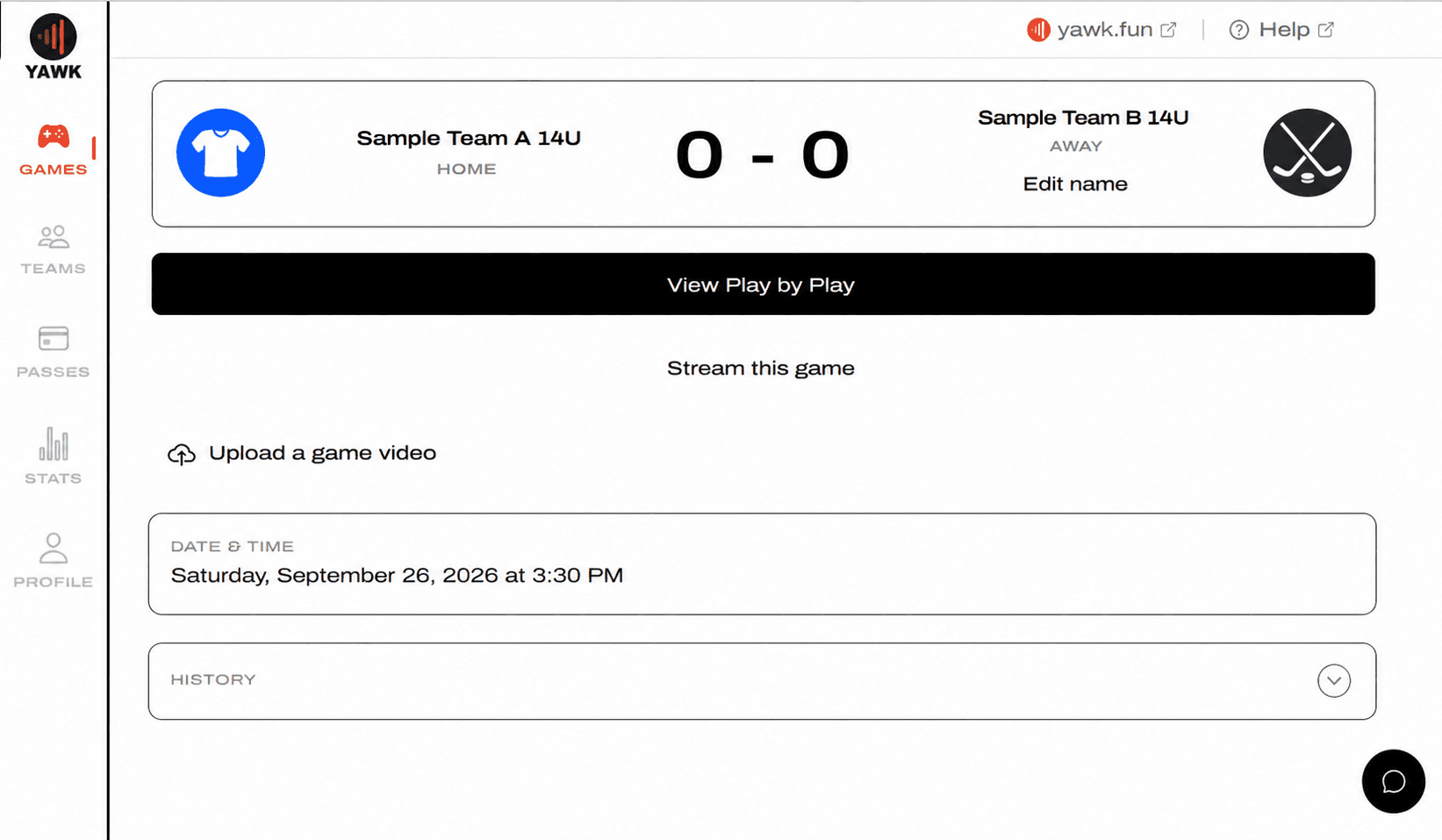
Open the game and tap Upload a game video
Sign in at app.yawk.fun, open the game, and find Upload a game video below the play-by-play. It's offered to any Roster Pass holder on either team. Pick the file from your camera or phone.
Keep the tab open until it finishes
A progress bar shows the percent and time left. Closing or reloading the tab cancels the upload and you'll need to start it again. A full game can take half an hour or more on home Wi-Fi.
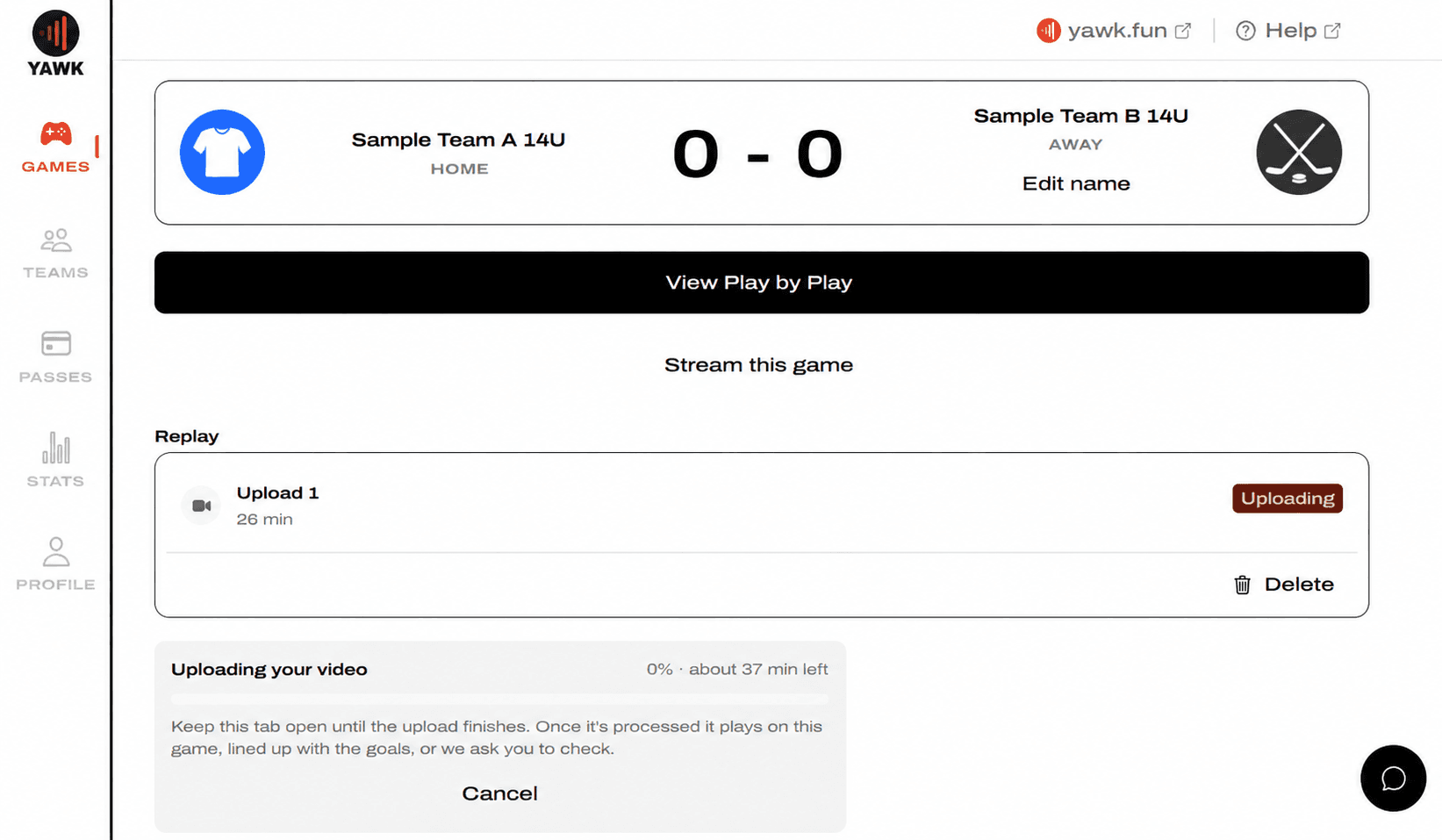
If the bar sits on waiting on the network for more than a minute, YAWK retries the stalled part by itself. If it never moves, check the connection and start again.
Wait for processing
Once the file is in, its row under Replay shows Processing while YAWK converts it for playback, then Syncing while it lines the video up with the game clock. Processing a full game can take up to half an hour. You can leave the page — the row updates on its own.
Line it up with the game
YAWK works out where your video sits on the game clock by listening for the crowd around each goal, or by matching it to a stream of the same game. When it's sure, the video is placed with no help from you. When it isn't, it asks.
If it says Needs a check, tap Check the placement
Sometimes YAWK can't be sure where the video sits. The upload's row then shows Needs a check and a Check the placement button, for the person who uploaded. It shows a strip of frames from the moments it thinks are goals, with its Best guess marked. Tap a frame to watch that moment, then confirm whether it's a goal. One confirmed goal is enough to line up the whole video.
Open Place the goals
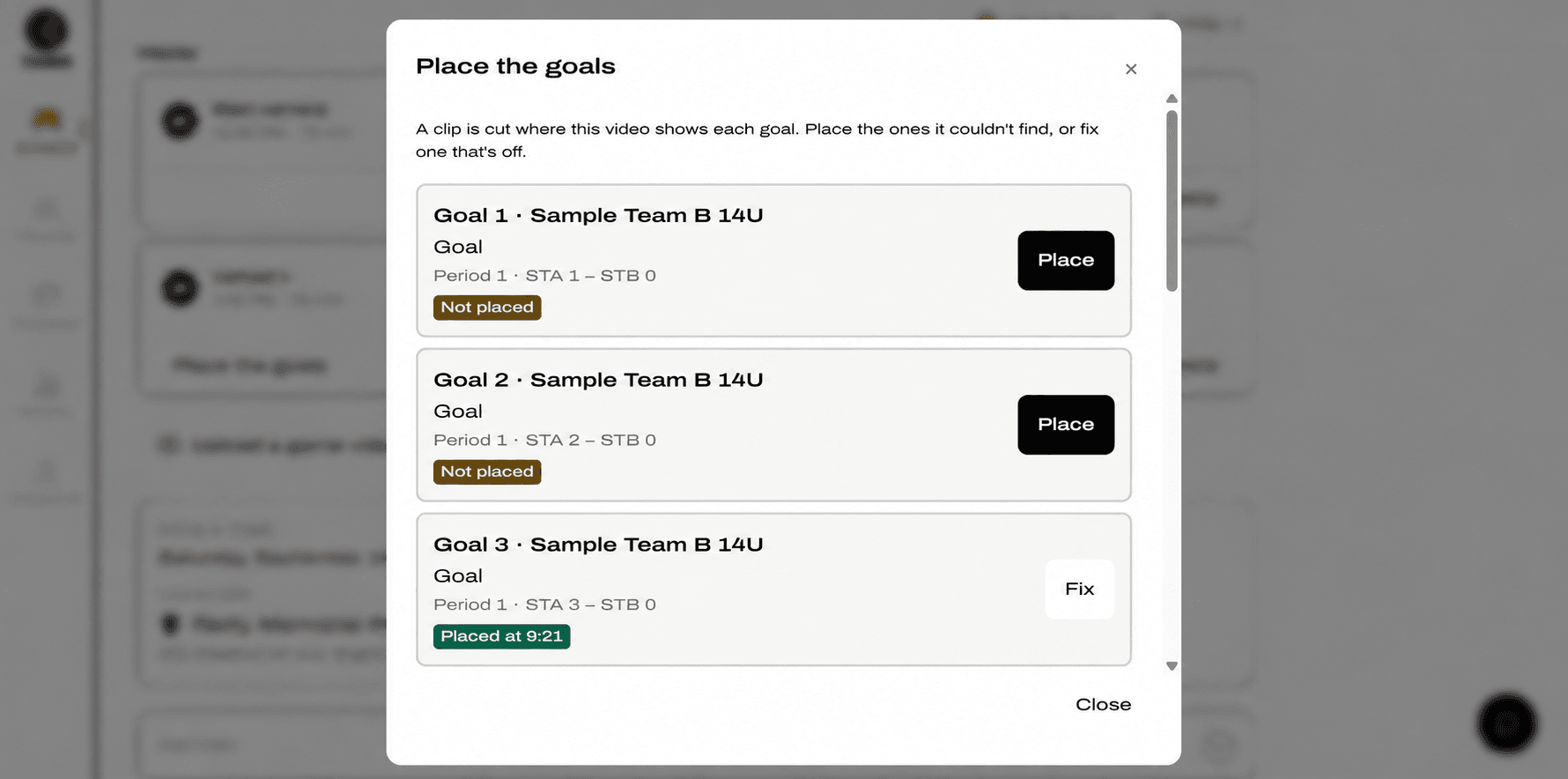
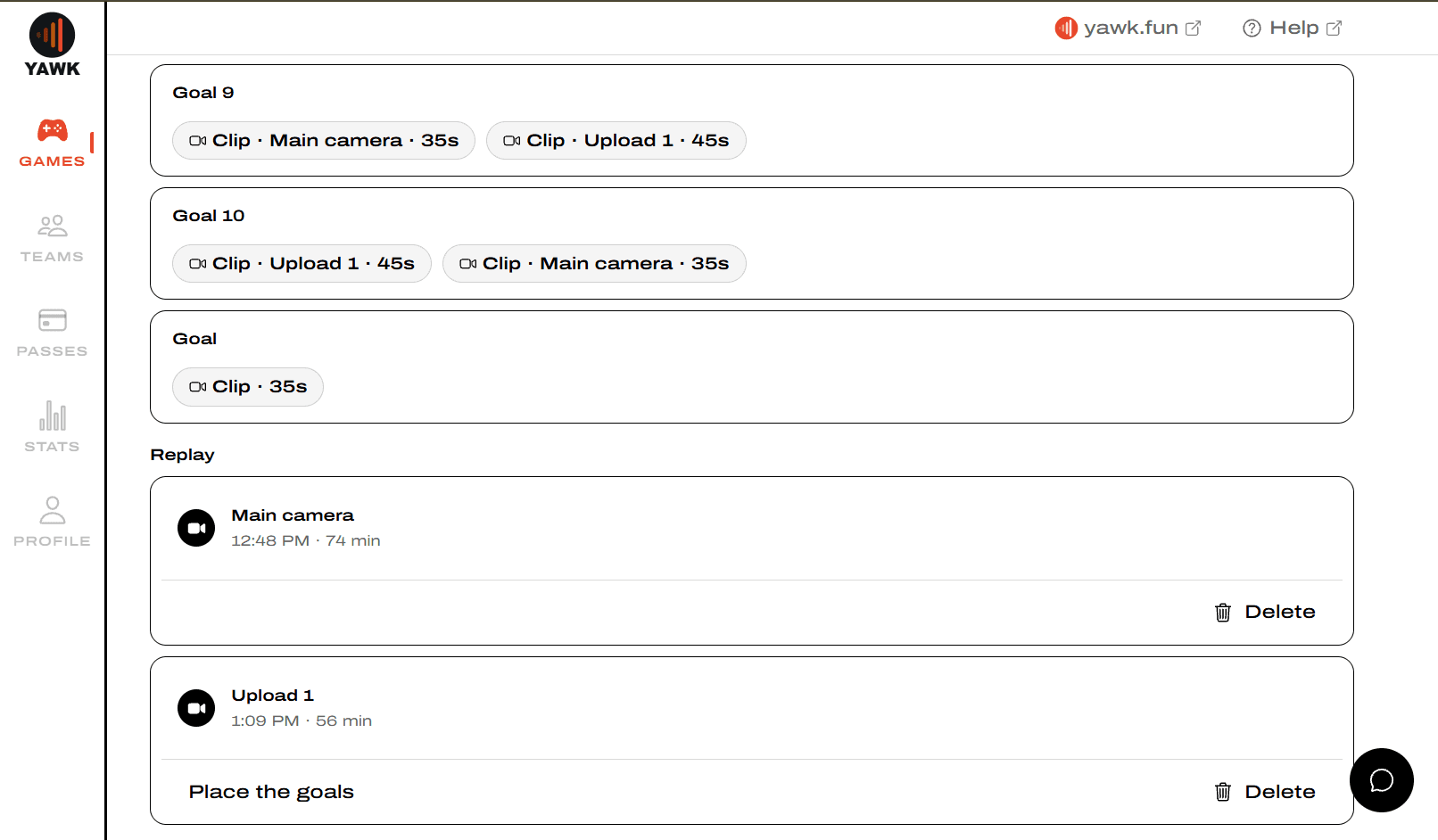
Once the video is placed, a clip is cut wherever the video shows each goal. If YAWK couldn't find one, or a clip is off, open Place the goals (or Fix a goal) from the upload's row under Replay. Each goal is listed with the period and score at the time, and a tag: Not placed with a Place button, or Placed at a time with a Fix button.
Pause on the goal and tap This is goal
Tap Place or Fix and the video opens at the nearest point YAWK has. Scrub to the moment the goal goes in, pause there, and tap This is goal 1 (or whichever goal you're placing). Back returns to the list without changing anything.
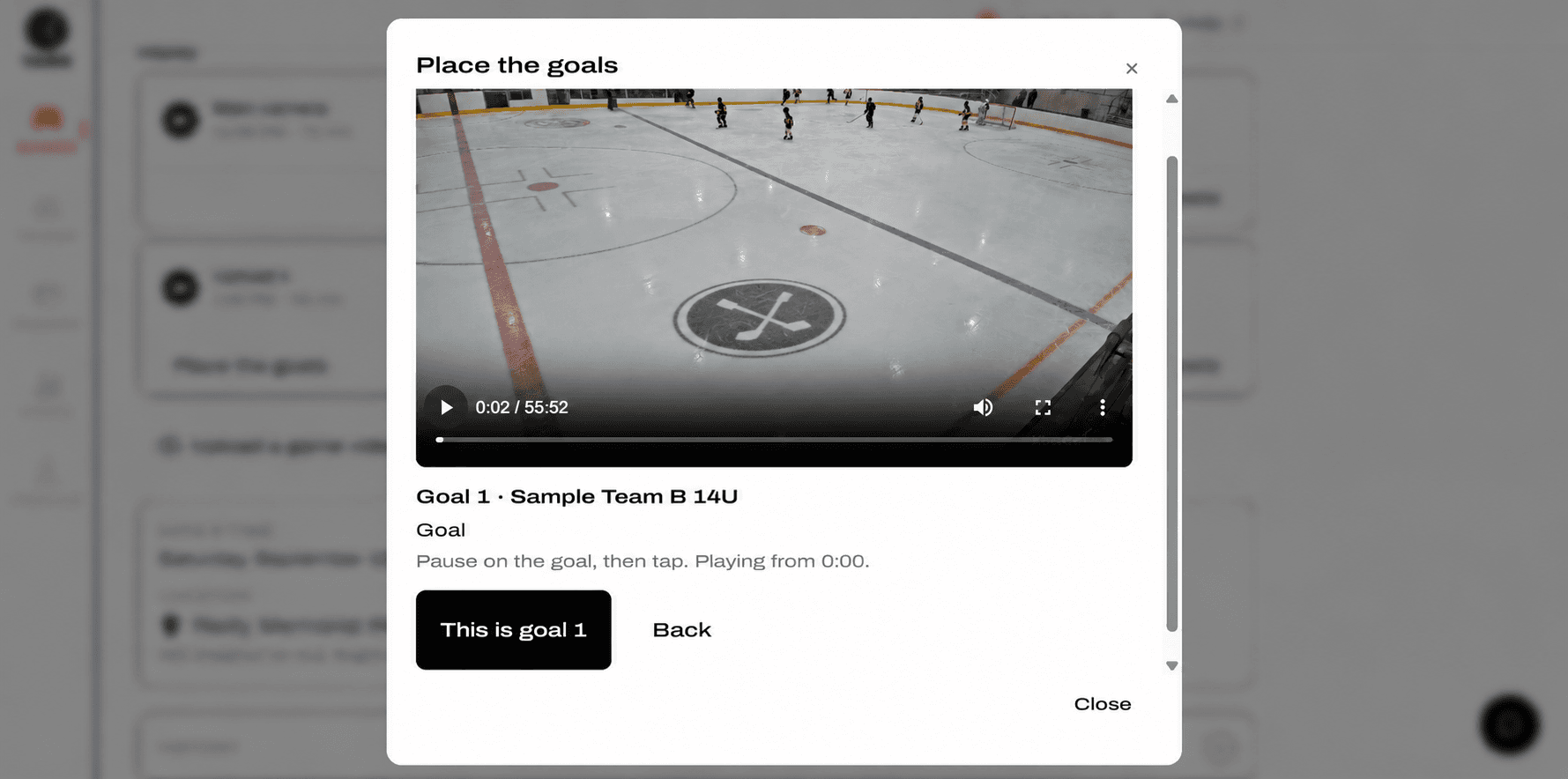
Any goal you place by hand gets its clip right away, and the video stays lined up for everyone else's goals too.
Clips and replays appear
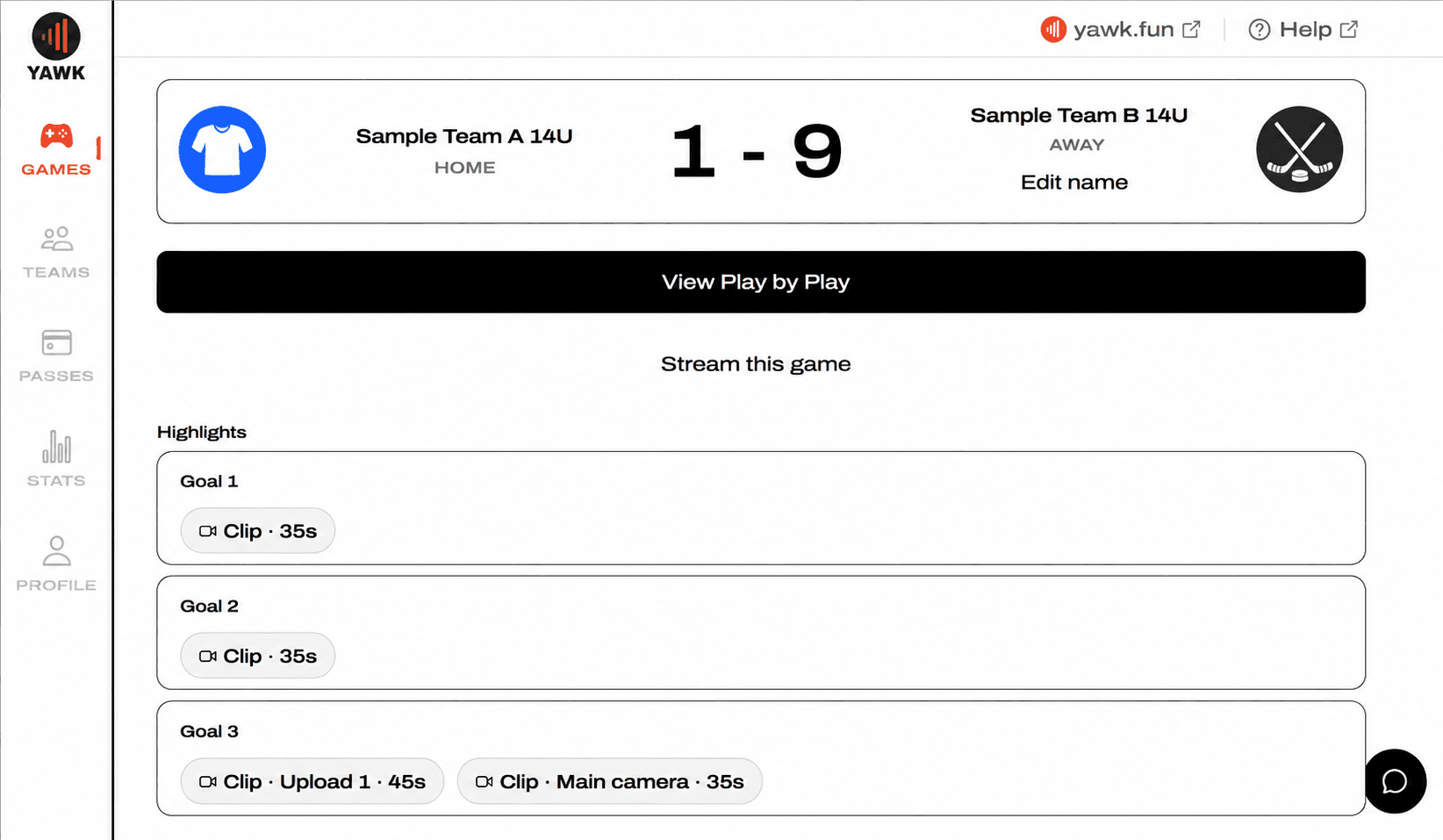
Clips of each goal show up under Highlights, named for the goal — Goal 3, say — and, when the game has more than one video, which feed they come from: Clip · Upload 1 beside Clip · Main camera. For your team's goals, when the play is clearly visible, an Enhanced Highlight is rendered beside the clip.
Who sees it, and how to remove it
Signed-in users, in the app
Anyone signed in to YAWK can watch the upload, its clips and its replays from the game page in the mobile app or on the web. Video never appears on the public yawk.fun site.
Delete your upload
On the game's Replay list, your own uploads have a Delete button, next to Place the goals. Deleting removes the video along with its clips and highlights, for everyone. Only the person who uploaded a video can delete it.
You own the video you record. Uploading gives YAWK permission to show it to signed-in users and cut clips from it; it stays yours. See the Terms of Service for the details.