
Stream a game live
Any Roster Pass holder on either team can stream a game from a phone or camera. Family watches live in the app, the recording stays on the game, and every goal gets a clip.
Before you start
YAWK doesn't use your phone's camera directly. You stream from any camera or app that can send a Custom RTMP stream — Larix Broadcaster on a phone, OBS on a laptop, or a camera with streaming built in — and YAWK gives you the address and key to paste in.
Check the venue's rule first
Many rinks and school gyms have an exclusive streaming partner (LiveBarn, NFHS Network, Hudl and similar) and restrict other cameras. What those contracts restrict is streaming from an automated or unattended camera — a tripod, a mount on the glass, or anything that tracks the play by itself. A camera in your hand is not that. Check the rink's rule before you set anything up; it's your responsibility, not YAWK's.
At a venue with a streaming partner: go live only from a camera you're holding, with tracking off. Anything on a tripod or mount should record to its memory card instead — you can upload it after the game.
Pick a setup that fits the venue
Where streaming is allowed (most fields, town rinks and gyms without a partner), a phone on an XbotGo or a tripod works well and needs no attention. At a venue with a partner, a phone on a handheld gimbal with tracking off, or a head-mounted action camera, keeps you inside the rules and still hands-free enough to get through a game.
Sound matters. YAWK uses the crowd reaction to line uploads up with the goals, and it's what makes a replay feel like being there. Don't mute the camera.
Stream from your camera
Open the game and tap Stream from your camera
Open the game from your Games list and tap Stream from your camera, below View Play by Play, in the app or on the web. Only a Roster Pass holder on one of the two teams sees it. The sheet has two groups, one for each way a camera app takes the address: a URL and a key, or one URL with the key in it. The address doesn't change, so you can close the sheet and come back to it.
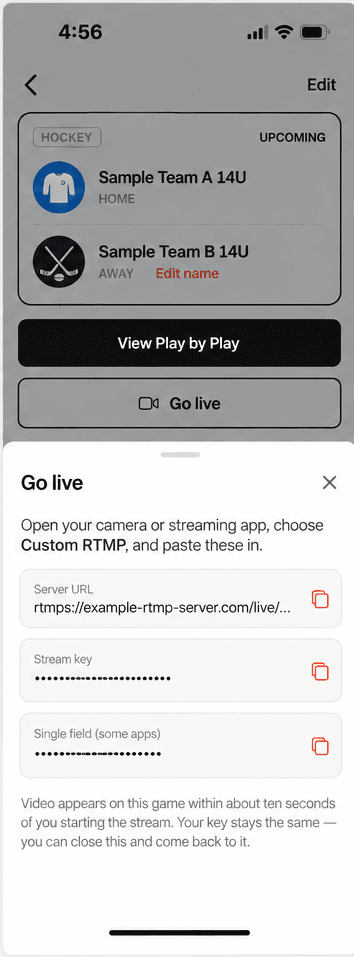
Treat the key like a password, and the one URL too, since the key is inside it. Anyone who has either can stream into your game.
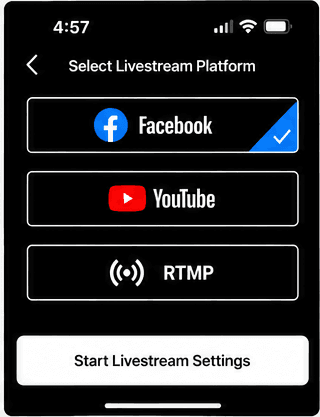
In your camera app, choose RTMP
Open your camera or streaming app and look for its live streaming option. It will list platforms such as Facebook and YouTube; pick RTMP (some apps call it Custom RTMP). This example is the XbotGo app.
Paste the address and pick a quality
Copy what the app asks for. If it asks for a URL and a key, as XbotGo and OBS do, copy URL and Key into their fields. If it asks for one URL, as DJI Mimo and Larix Broadcaster do, copy URL with key instead. Then choose a resolution.
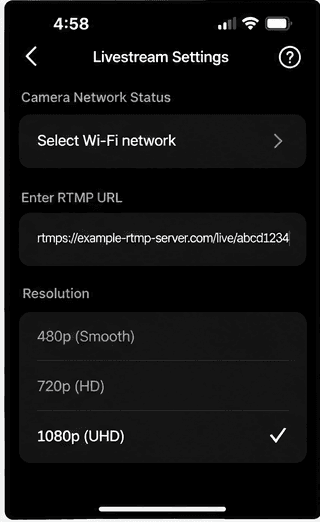
720p is plenty. On a rink's cellular signal a lower resolution that keeps up beats 1080p that stutters — YAWK can only keep the frames that actually arrive.
Start streaming in the camera app
Start the stream in the camera app. Video appears on the game within about ten seconds, and a Watch live button shows up for everyone else. If someone else on the team started first, theirs is the main camera and yours still streams as a second feed. Reopening Stream from your camera shows the same address and key.
Who can watch, and what happens after
Family watches in the app
Anyone signed in to YAWK can open the game and tap Watch live — Roster Pass holders, the co-parent in your household, and followers. Video is never shown on the public yawk.fun site. If a stream is very popular you may see This game is full; try again in a moment.
The recording stays on the game
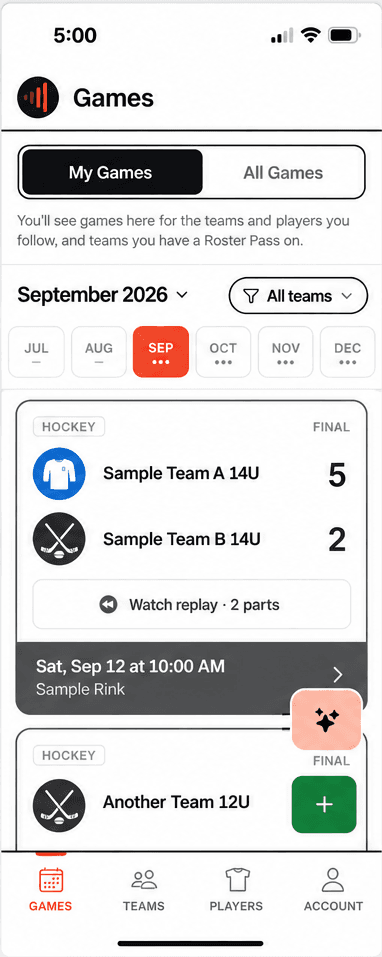
A couple of minutes after the stream ends, the full recording appears as a replay on the game, and the game's card in the Games list shows Watch replay. If more than one camera streamed, each is listed as its own replay and viewers pick the angle they want.
Every goal gets a clip
As goals are confirmed in the play-by-play, YAWK cuts a clip of each one from the recording and lists it above the replays, a few minutes after the goal. For your team's goals, when the play is clearly visible, YAWK also renders an Enhanced Highlight — a replay with slow motion and a scorer card, shown as Enhanced replay in the app — beside the clip.
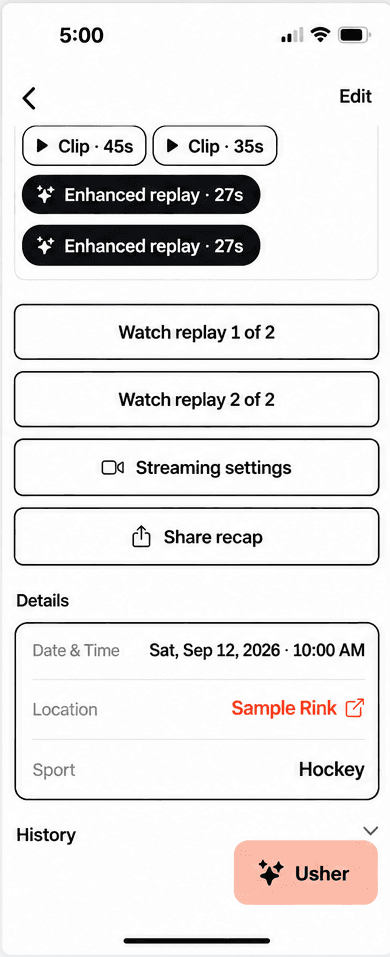
Clips come from the goals scored in YAWK. Score the game live and the clips find themselves; a goal entered after the camera stopped has no footage to cut.
Delete a stream you set up
On the game's Replay list, the person who set up a camera can delete its feed. That removes the recording along with its clips and highlights, for everyone. Nobody else can remove your video.