
Privacy settings for kids and parents
YAWK takes kid safety seriously. Here's how parental consent works and how you adjust what's visible for each player.
This describes privacy settings. For more, read the Privacy Policy.
How parental consent works
YAWK is designed for parents and legal guardians acting on behalf of youth athletes. Adding a player via a Roster Pass — whether free or paid — is how we verify parental consent under COPPA. A player's profile is private by default and is never shown on the public site unless the managing parent or guardian chooses to make it public. We don't collect players' ages.
Who can create an account
YAWK accounts are for adults: a parent or legal guardian (18+) signs up and adds players — themselves, their child, or another athlete they're authorized to register.
This follows the Children's Online Privacy Protection Act (COPPA). See our Privacy Policy for the full details.
Adjust privacy on the Passes page
Privacy is set per player, not per team. The same player keeps the same settings across every team they're rostered on.
Open Privacy Settings
From the Passes tab, find the player under PLAYERS and tap Privacy Settings on the right side of the row.
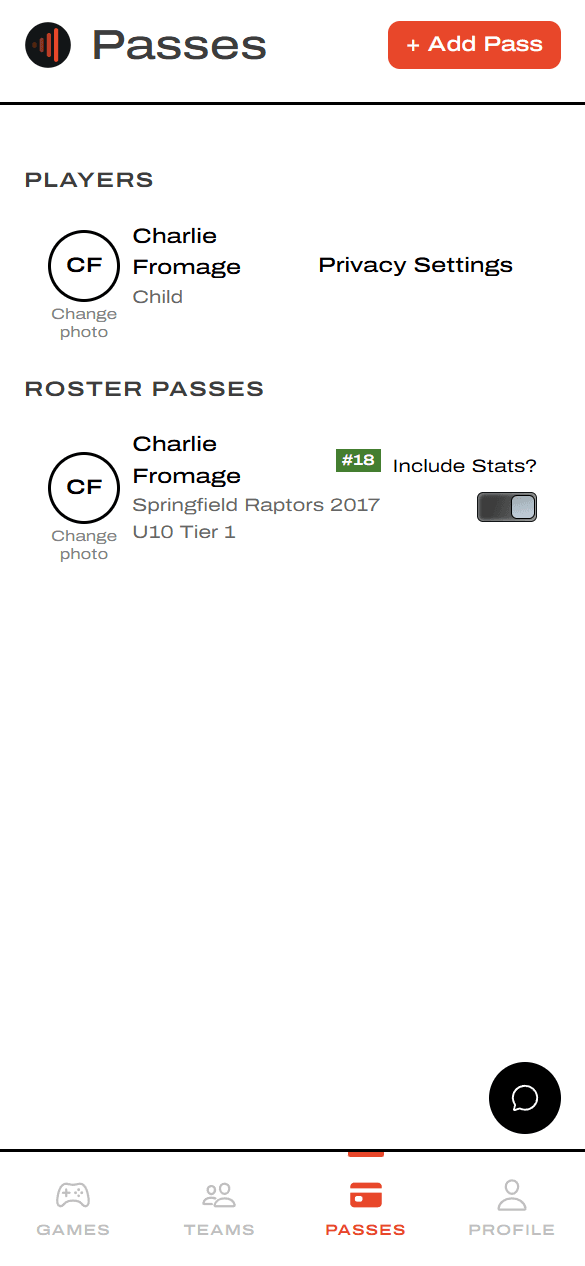
Pick what's visible
Players are private by default. The Visibility modal is where you choose to share a player — turn the whole profile on, then fine-tune each piece individually.
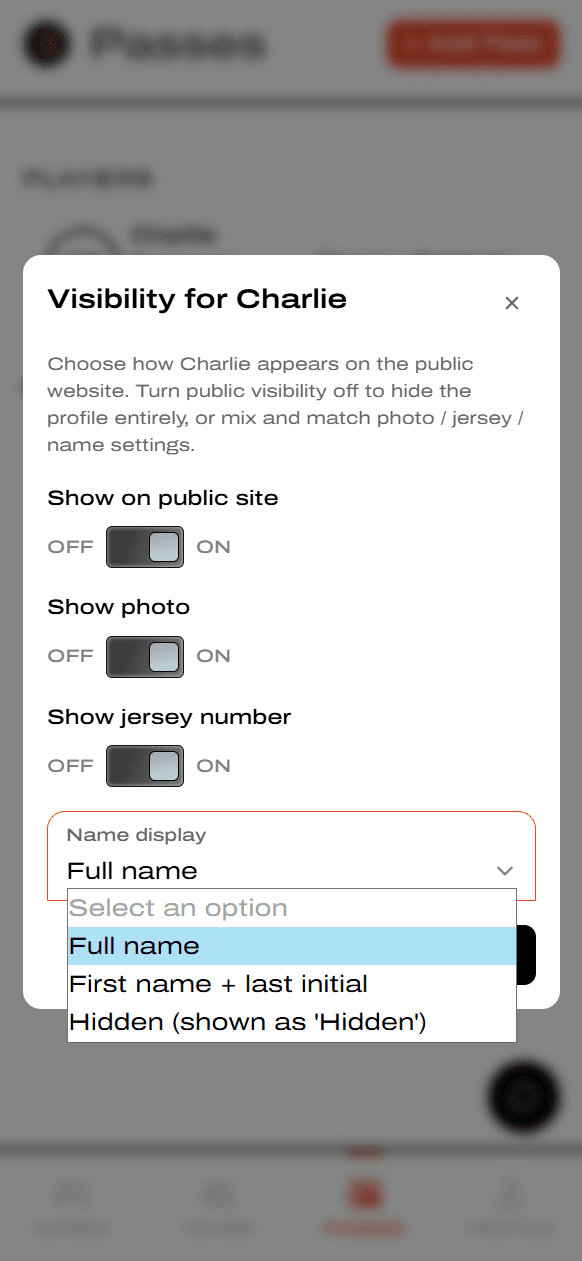
- Show on public site — master switch, OFF by default. Turn it on to show the profile on yawk.fun; OFF hides it entirely.
- Show photo / Show jersey number — fine-grained toggles for those fields.
- Name display — Full name, First name + last initial, or Hidden (the profile shows the literal word 'Hidden').
Lowering visibility removes the player from public pages going forward, but YAWK cannot remove copies others may have already saved.