
Invite someone to a team
Share a team with other parents and coaches via link, QR code, or email. Invitees confirm the team and buy a Roster Pass to join. On a team started with a Team Pass, families join only by an invitation from the team's coach or managers, not by a share link.
Find the team and pick a share method
Open the Teams tab
From the bottom nav, tap Teams. Each team card has three share icons in the bottom-right: copy link, QR code, and email.
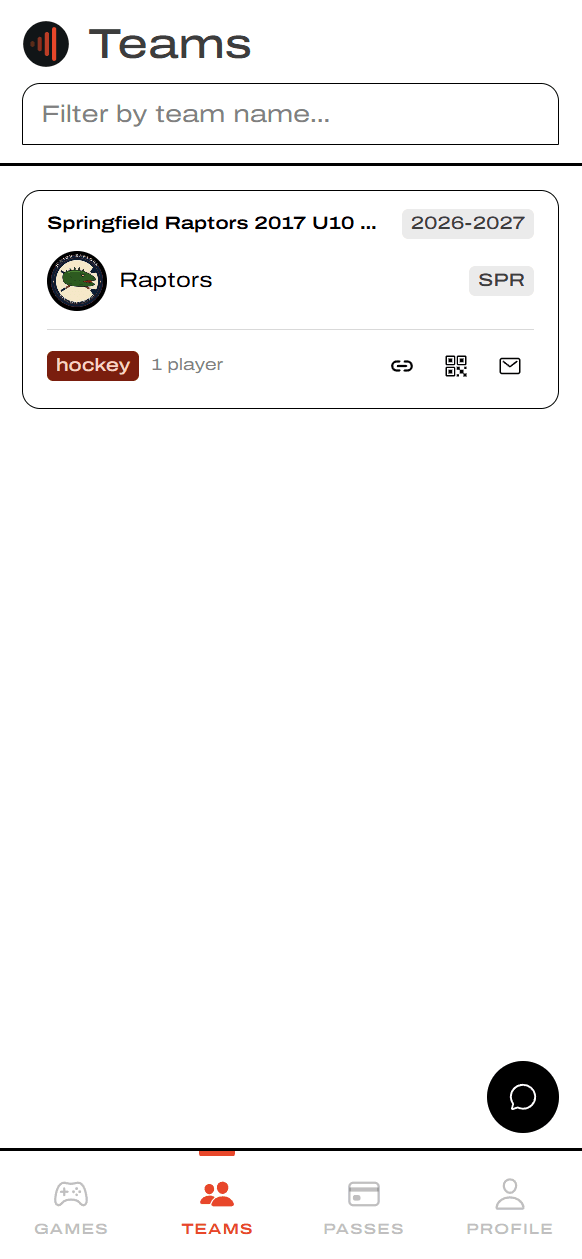
Three ways to share
Copy the share link
Tap the link icon on the team card. The invite link copies to your clipboard and a Share link copied toast confirms. Paste it into a text, group chat, or anywhere else.
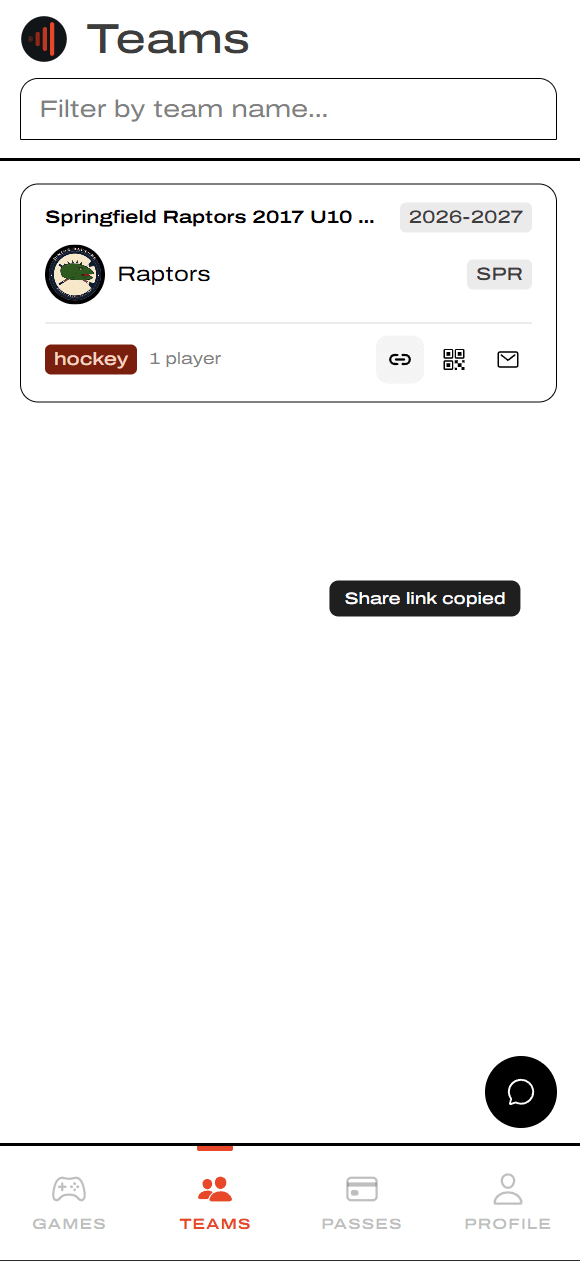
Show a QR code
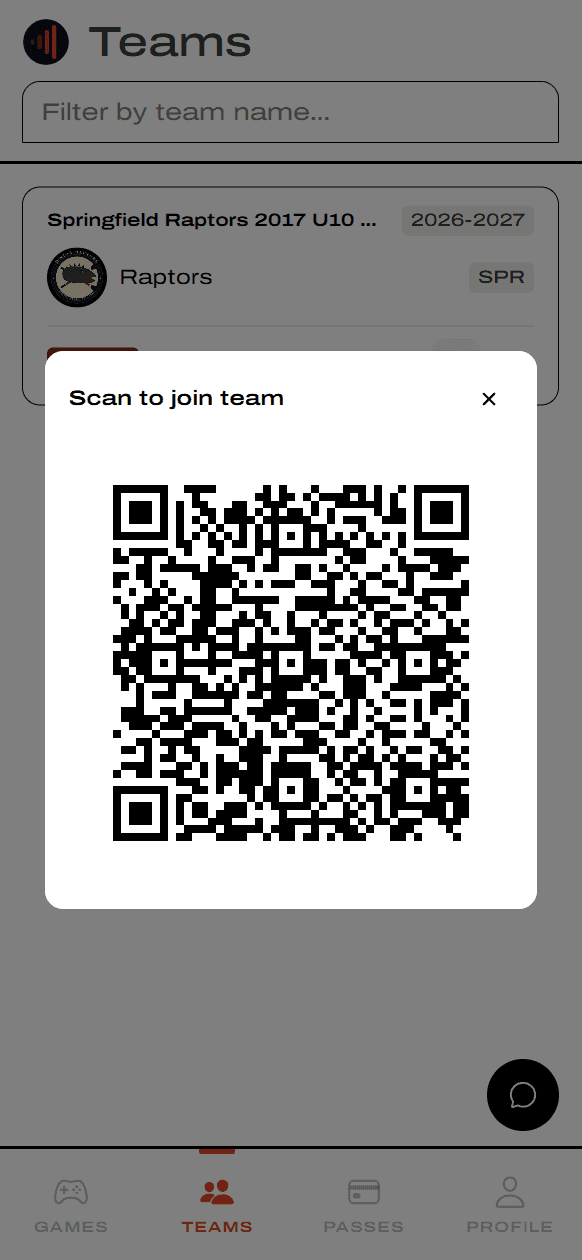
Tap the QR icon to open a Scan to join team modal. Hold up your phone at practice or a game and other parents can scan it directly with their camera.
Send an email
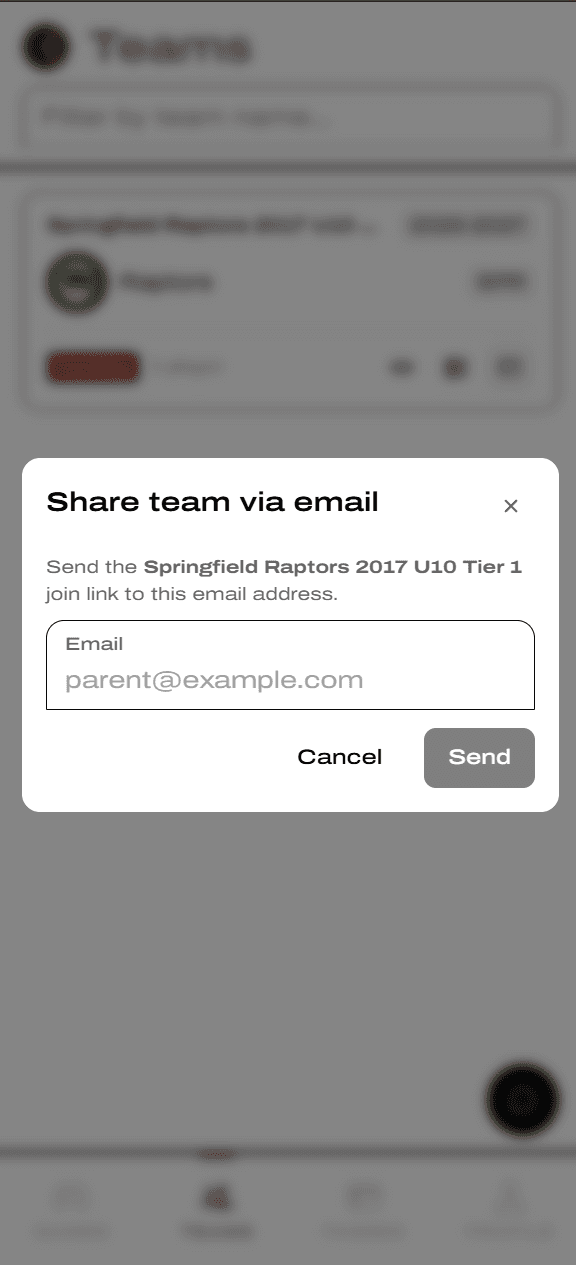
Tap the email icon, type the recipient's email, and hit Send. YAWK delivers the invite link directly to their inbox.
What invitees see
However the invitee gets the link, it carries a share code that drops them into the right team's join flow.
If they're not signed in
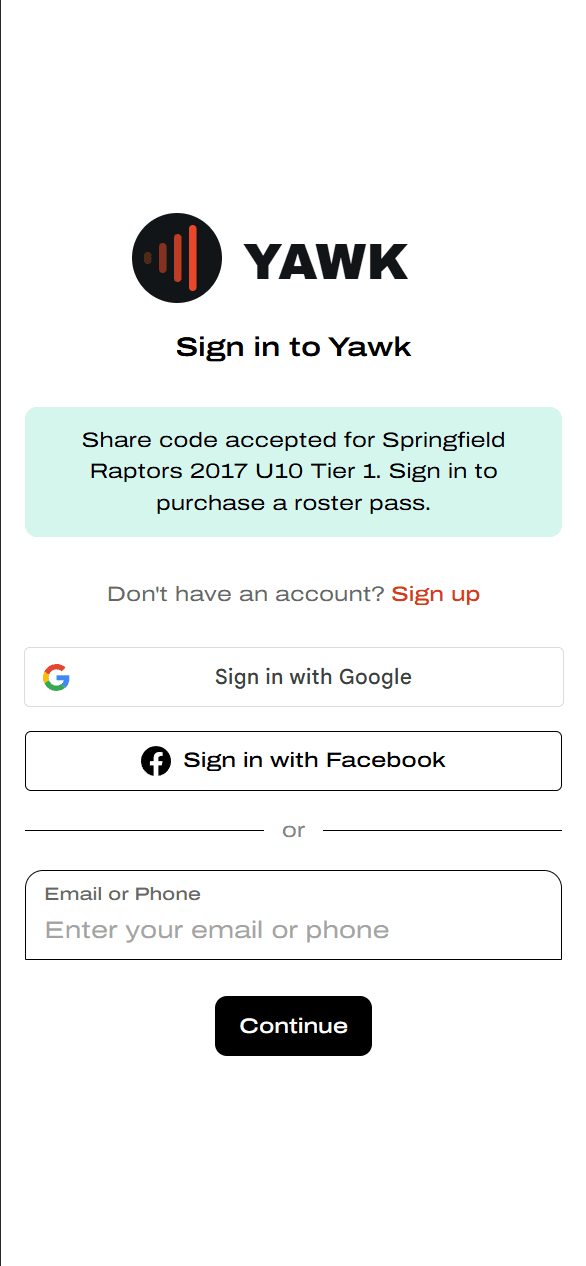
They land on Sign in to YAWK with a green banner confirming the share code was accepted. They can sign in with Google, Facebook, or email/phone — or tap Sign up if they're new to YAWK.
Confirm the team and join
Once signed in, they see Is this the correct team? with the team's name, season, age group, and a roster preview. Tapping Join Team takes them straight into the Roster Pass flow to add themselves or their child.
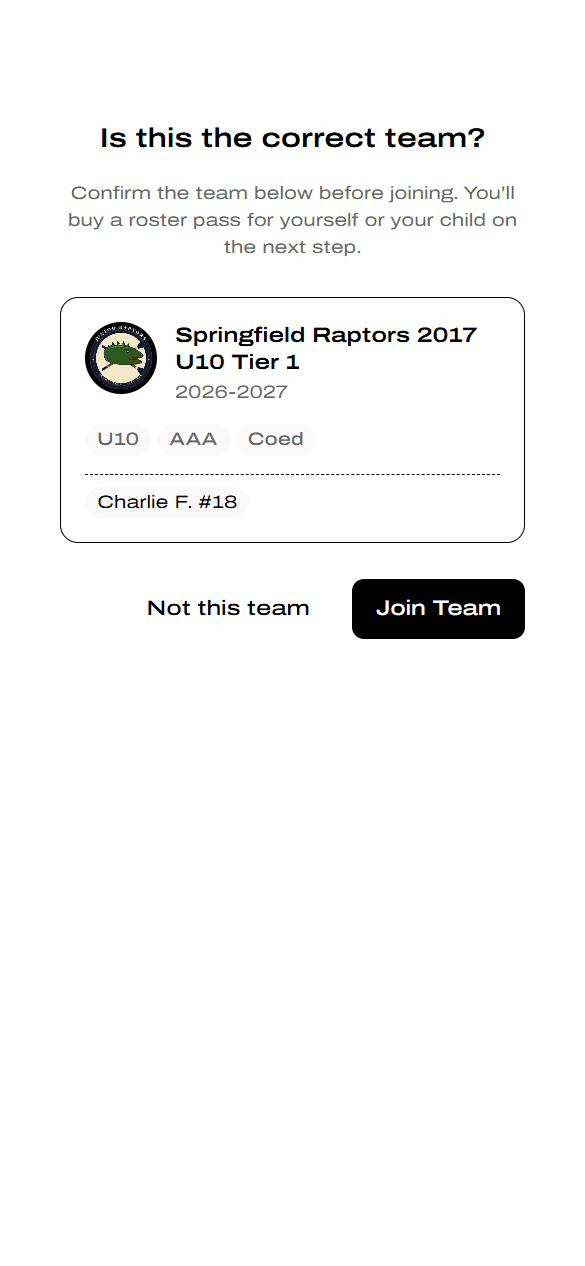
Joining a shared team still requires a Roster Pass — the share link skips the team search but they'll buy a pass on the next step.